Login Screen Overview
Section Structure:
- Title: The screen is headed by the title “🔐 Login to Active Quiz” — either centered or aligned per the theme.
- Email Field: Input field for the user’s email address with proper keyboard and validation type.
- Password Field: A secure input for the user’s password, typically with a visibility toggle icon.
- Login Button: Large blue button placed prominently to initiate the login process.
- Register Link: Below the login form is a link labeled “Don't have an account? Register” which navigates to the registration screen.
- Social Login: A secondary button offering “Sign in with Google” as an alternative login method.
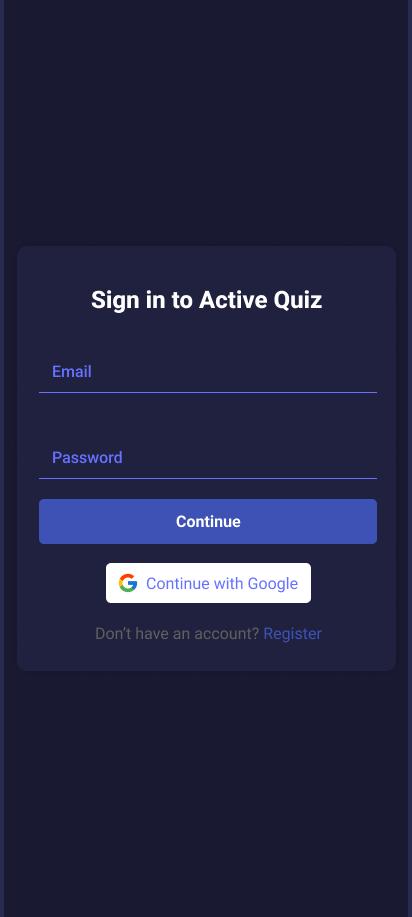
This screen provides login functionality with email and password fields, a blue login button, Google sign-in option, and a register link at the bottom.
Register Screen Overview
Section Structure:
- Title: Displays “📱 Register” at the top of the screen, styled clean and centered.
- Full Name: Input field for entering the user's complete name.
- Email Address: Standard email input field with validation and proper keyboard.
- Mobile Number: Numeric field with phone-specific input type and validation.
- Password: Secure password input with a toggle icon for visibility.
- Confirm Password: Field to re-enter password and ensure match with validation.
- Register Button: A pill-shaped button with black background and purple text that triggers the registration API call.
- Login Link: Text link below the button saying “Already have an account? Login” to switch to the login screen.
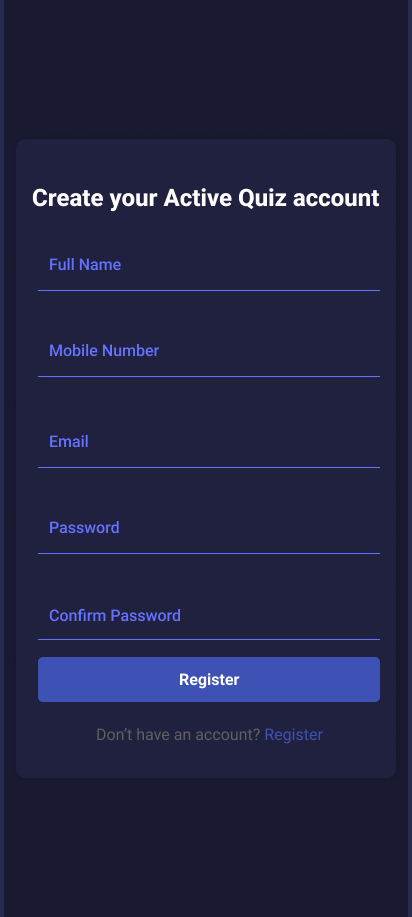
This screen lets new users register with personal details including name, email, phone, and password. It includes a styled button and a link to switch to login.